


Understanding the importance of syncing steps to Apple Health
Why syncing your steps matters for your health journey
Syncing your wearable steps with Apple Health is more than just a technical task—it’s a key part of managing your health data in one place. When you connect your device, like a Fitbit, Garmin, or even an Apple Watch, to the Health app on your iPhone, you make it easier to track your progress, set new goals, and get a complete view of your activity. This helps you understand patterns in your steps, heart rate, and sleep, which can motivate you to make positive changes.
- Centralized health data: Apple Health acts as a hub, collecting information from different apps and devices. Whether you use Samsung Health, Garmin Connect, or Whoop, syncing ensures your steps and other metrics are shared and visible in one place.
- Better insights: By combining data from multiple sources, you get a more accurate picture of your daily activity, screen time, and even rate of sleep. This can help you adjust your habits for better health outcomes.
- Seamless sharing: With the right settings, you can choose what health data is shared between apps, giving you control over your privacy and security. You can easily change these options in the settings privacy section of your iPhone.
Many people experience issues when trying to sync their wearable steps with Apple Health, especially when using third-party devices like Fitbit. If you’re facing problems, you might find this guide on why your Fitbit might not be syncing helpful. Understanding the basics of syncing and the importance of accurate data can set the stage for a smoother experience as you move forward with your health goals.

Compatible wearables and Apple Health integration
Popular Wearables That Work with Apple Health
Apple Health is designed to be a central hub for your health data, making it easy to sync steps, heart rate, and sleep information from a variety of devices. While the Apple Watch offers the most seamless integration, many other wearables and fitness apps can also connect to the Health app on your iPhone.
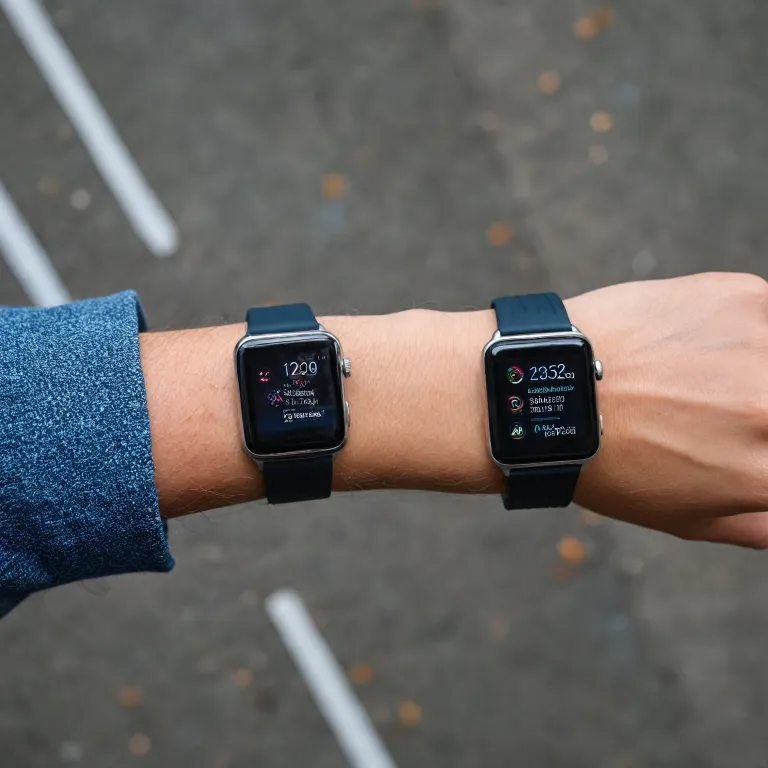
- Apple Watch: Directly syncs steps, heart rate, and more with Apple Health. No extra apps needed.
- Fitbit: Although Fitbit does not natively sync with Apple Health, third-party apps like Sync Solver or Health Connect bridge the gap. For a comprehensive guide on solving Fitbit syncing issues, check out this resource.
- Garmin: Garmin Connect app allows you to share steps and other health data with Apple Health. You need to set up the connection in the app’s settings.
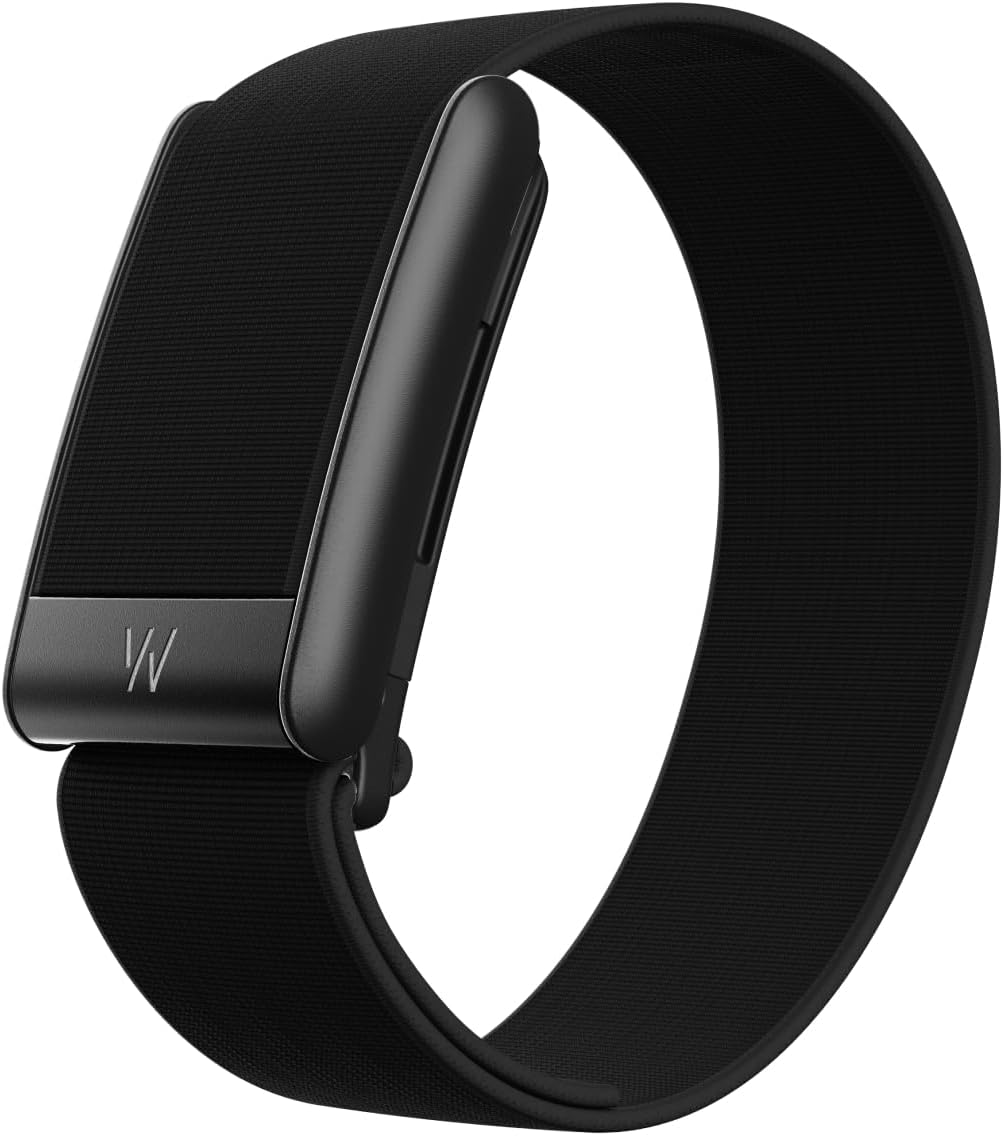
- WHOOP: WHOOP can sync activity and sleep data with Apple Health by enabling sharing in the app settings.
- Samsung Health: Samsung devices do not natively sync with Apple Health, but third-party apps can help transfer your steps and health data.
How Wearables Share Data with Apple Health
Most wearables use their own companion app on your iPhone to manage syncing. For example, Garmin uses Garmin Connect, while Fitbit relies on its own app and sometimes third-party solutions. Once you open the app and connect your device, you can usually find an option to share or sync data with Apple Health in the app’s settings or privacy section. Look for options like "Connect to Apple Health" or "Share Data with Health App".
- Open the relevant app on your iPhone.
- Tap the profile icon or go to settings.
- Find the Apple Health or data sharing option.
- Enable sharing and select which health data (steps, heart rate, sleep, etc.) you want to sync.
Things to Consider Before Connecting
When you connect your wearable to Apple Health, you can choose what data is shared. You might want to sync only steps, or include heart rate and sleep data as well. Always review the app’s privacy and security settings to control what information is shared and how it’s used. If you change your mind, you can adjust these settings in the Health app under Settings > Privacy > Health on your iOS device.
With the right setup, your iPhone becomes a powerful tool to track your health and fitness data from multiple sources, helping you get a more complete picture of your activity and well-being.
Step-by-step guide to syncing your wearable with Apple Health
Getting Your Wearable Steps into Apple Health
Syncing your wearable device with Apple Health can help you keep all your health data in one place, making it easier to track steps, heart rate, and sleep. The process varies depending on the brand of your device and the apps you use, but the main goal is to connect your wearable’s app to the Health app on your iPhone.- Apple Watch: If you use an Apple Watch, your steps and heart rate are automatically shared with the Health app. Just make sure your watch is paired with your iPhone and both devices are updated to the latest iOS and watchOS versions.
- Fitbit: Fitbit does not natively sync with Apple Health. You’ll need a third-party app from the App Store, such as "Sync Solver" or "Health Sync." Download the app, open it, and follow the prompts to connect your Fitbit account and allow data sharing with Apple Health. You may need to tap "Connect" and grant permissions for steps, heart rate, and sleep data.
- Garmin: Garmin users should install the Garmin Connect app on their iPhone. In Garmin Connect, go to "Settings," then "Connected Apps," and select "Health." Tap "Connect" and allow Garmin to share your activity, steps, and heart rate with Apple Health. Make sure you’re logged into both apps with the same profile icon and that permissions are enabled.
- Samsung Health: Samsung Health doesn’t directly sync with Apple Health, but you can use third-party apps to bridge the gap. Search the App Store for a compatible app, install it, and follow the instructions to connect Samsung Health to Apple Health.
- Whoop: For Whoop users, open the Whoop app on your iPhone. Go to "Settings," find the "Integrations" section, and select Apple Health. Enable sharing for steps, heart rate, and sleep. Confirm the permissions in your iPhone’s "Settings" under "Privacy & Security" and "Health."
Fine-Tuning Your Sync Settings
After connecting your device, it’s important to check your Health app settings to ensure the right data is being shared. Open the Health app, tap your profile icon in the top right, and select "Devices" or "Apps." Here, you can see which apps are sharing data with Apple Health. Tap each app or device to adjust what information is shared, such as steps, heart rate, or sleep. If you want to prioritize which device’s data appears in the Health app, go to "Sources" in the Health app, select the relevant app or device, and change the order of data sources. This is useful if you use more than one wearable or app to track your activity.Tips for Seamless Syncing
- Keep your iPhone and wearable device updated to the latest software versions.
- Open both the wearable’s app and the Health app regularly to ensure data syncs in real time.
- Check your iPhone’s "Screen Time" settings to make sure app restrictions aren’t blocking sync functions.
- Review your privacy and security settings to confirm you’re comfortable with the data being shared.
Troubleshooting common syncing issues
What to Do When Your Steps Aren’t Syncing
Syncing your wearable’s steps and health data with Apple Health can sometimes hit a snag. Whether you use a Fitbit, Garmin, Samsung Health, or another device, a few common issues can prevent your steps or heart rate from showing up in the Health app on your iPhone. Here’s how to troubleshoot and get your data flowing again.
- Check Bluetooth and Internet Connection
Make sure Bluetooth is enabled on your iPhone and your wearable is close by. Some apps, like Garmin Connect or Fitbit, also need an active internet connection to sync data. - Update Apps and iOS
Outdated versions of your wearable’s app or iOS can cause syncing problems. Open the App Store and update both your health apps and your device’s software. - Review Permissions in Settings
Go to Settings > Privacy & Security > Health on your iPhone. Make sure your wearable’s app (like Fitbit, Garmin Connect, or Samsung Health) is allowed to read and write health data. If you don’t see the app, open it and look for an option to connect or share data with Apple Health. - Reconnect Your Device
Sometimes, disconnecting and reconnecting your wearable can resolve sync issues. In your wearable’s app, look for the option to disconnect from Apple Health, then tap connect again. This can refresh the link between the apps. - Force a Manual Sync
Open your wearable’s app (such as Fitbit, Garmin Connect, or Whoop) and look for a manual sync option. This is often found by tapping the profile icon or a sync button on the main screen. - Restart Devices
Restart both your iPhone and your wearable. This simple step can often fix temporary glitches that block syncing. - Check for App-Specific Settings
Some apps require you to set Apple Health as a data source. For example, in Garmin Connect, go to Settings > Connected Apps > Apple Health and make sure steps, heart rate, and sleep are enabled for sharing. - Screen Time Restrictions
If you use Screen Time on your iPhone, make sure it’s not blocking your health apps from running in the background.
When to Contact Support
If you’ve tried these steps and your steps or health data still won’t sync, it may be time to reach out to the support team for your wearable’s app. They can help with device-specific issues or bugs. Remember, syncing can sometimes take a few minutes, especially after a change in settings or a new connection.
Maximizing your fitness data across platforms
Getting the Most from Your Synced Health Data
Once your wearable device is connected to Apple Health, you can unlock a more complete view of your health and fitness journey. Whether you use a Fitbit, Garmin, Samsung Health, or Whoop, syncing steps, heart rate, and sleep data with the Health app on your iPhone helps you track progress and spot trends over time.
- Centralized Tracking: Apple Health acts as a hub, collecting data from different apps and devices. This means your steps from Garmin Connect, heart rate from your Apple Watch, and sleep data from Whoop can all be viewed together in the Health app.
- Cross-App Insights: Many third-party apps on the App Store can read and share data with Apple Health. For example, nutrition or workout apps can use your step count and heart rate to personalize recommendations or track calories burned.
- Personalized Goals: With all your health data in one place, you can set more accurate goals. The Health app lets you monitor trends, such as increasing your daily step target or improving your sleep quality, based on real data from your connected devices.
- Sharing with Healthcare Providers: If you choose, you can share selected health data with your doctor or family members directly from the Health app. This can help with remote monitoring or support during health changes.
Tips for Managing Shared Data
- Review App Permissions: In your iPhone settings, check which apps have access to your health data. Go to Settings > Privacy & Security > Health to manage what each app can read or write.
- Customize Data Sources: If you use multiple devices (like a Fitbit and an Apple Watch), you can set which device takes priority for each type of data in the Health app. Tap your profile icon, then select Data Sources & Access to change the order.
- Monitor Screen Time: Some apps offer insights into your screen time or device usage, which can be helpful for balancing digital wellness with physical activity.
Syncing Across Platforms
To maximize your fitness data, regularly open the Health app and your wearable's companion app (like Garmin Connect or Fitbit app) to ensure everything syncs. If you notice missing steps or heart rate data, try refreshing the apps or checking your connection settings. Keeping your apps updated from the App Store can also help prevent sync issues.
By taking these steps, you can make the most of your health data, get a clearer picture of your activity, and use your iPhone and wearables to support your wellness goals.
Privacy and data security when syncing health information
How Your Health Data Is Handled When You Sync
Syncing your steps and health data from devices like Fitbit, Garmin, or WHOOP to Apple Health on your iPhone can be very convenient, but it’s important to know how your information is managed. When you connect an app to Apple Health, you’re allowing it to share data such as steps, heart rate, and sleep with the Health app. Each app, whether it’s Garmin Connect, Samsung Health, or another, has its own privacy policy and security measures. Apple emphasizes privacy by storing health data encrypted on your device and, if you use iCloud, encrypting it end-to-end. This means only you and those you choose can access your health information.
Managing Permissions and Settings for Privacy
To control what’s shared, open the Health app on your iPhone and tap your profile icon in the top right. Under Privacy, you’ll find Apps—here, you can see which apps have access to your data and change what each can read or write. For example, you might allow Garmin Connect to sync steps but not heart rate. If you use multiple devices or apps, review these settings regularly to ensure only trusted apps are connected. Also, check the privacy settings within each app, like Fitbit or WHOOP, to manage what’s shared with Apple Health.
Tips to Keep Your Health Data Secure
- Always download apps from the official App Store to avoid security risks.
- Use a strong passcode or Face ID on your iPhone to protect your health data.
- Review app permissions after updates, as new features may request more access.
- Set up Screen Time to monitor which apps access your health data.
- If you stop using a device or app, disconnect it from Apple Health and remove its access in settings.
What Happens When You Share Data Across Platforms
When you sync data between platforms, such as sharing steps from Fitbit to Apple Health or syncing Garmin data, your information may be stored on multiple servers. Each company—Apple, Fitbit, Garmin, Samsung—has its own approach to privacy and security. Always read the privacy policy of each app and adjust your settings to match your comfort level. Remember, you can change what’s shared at any time by going to the Health app settings on your iPhone.